What actually breaks in a CRM migration
A HubSpot to Salesforce migration documented on DEV Community this year moved 95,000 records and surfaced 40,000 duplicates, more than 40 percent of the database, most of which had been quietly accumulating for years under HubSpot’s own deduplication before anyone noticed. Another migration, written up separately by the automation agency PulseOps, ended with a 15 person service business discovering three days after cutover that its automation rules and follow up sequences had never migrated at all. Deals sat with no logic behind them to move them forward.
Neither failure was really a data problem. Both were sequencing problems. Nobody had decided in advance what counted as the same contact, and nobody had decided what order the new system needed to be built in before anything went live. A migration that gets this right is really just the connected growth system idea applied to the switch itself: the CRM, the automations, and the data behind them moving as one unit instead of three separate handoffs that can each fail on their own.
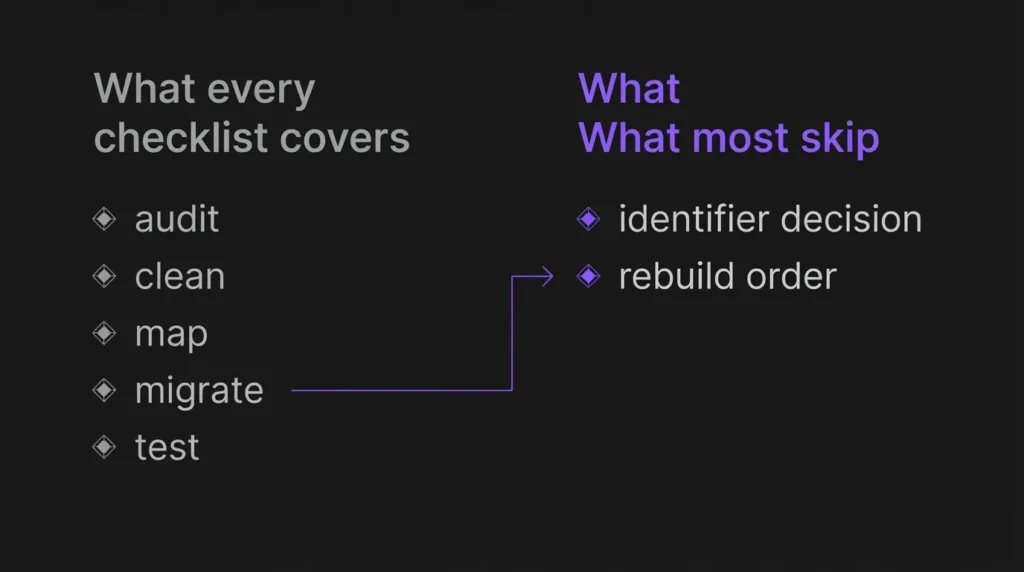
Search CRM migration checklist today and the top results agree almost exactly on the shape: audit, clean, map, migrate, test. That phase list is not wrong, it is just not the part that determines whether you land in a 40,000 duplicate pile. We run CRM migrations into GoHighLevel as one of our core services. This is the version of the checklist that covers the two decisions the four word phase list leaves out: what identifier catches a duplicate before it moves, and what order you rebuild automations in so a workflow does not fire against half migrated data.
What you need before you open either CRM
Get these four things lined up before you touch an export button.
Admin access to both systems. Not a user seat, admin, since field creation and import settings are usually admin only.
A full export of every active automation or workflow, not just the ones you remember. Old CRMs accumulate workflows nobody has opened in a year, and one of them is usually still live. Before you trust that export, it is worth knowing what actually exports cleanly before you migrate, since neither GoHighLevel nor HubSpot hands you your workflows the way most people assume.
The trigger condition for each workflow. What starts it, what field it reads, what it does. You cannot rebuild what you have not written down.
A list of every connected integration: payment processor, calendar, ad platform, form tool. Each one is a place data can silently stop flowing on cutover day.
This is close to the four step process we use on client engagements, map, clean, migrate, rebuild, described on our CRM migration service page. The rest of this checklist is what clean and rebuild actually mean in practice.
The identifier decision: what counts as the same contact
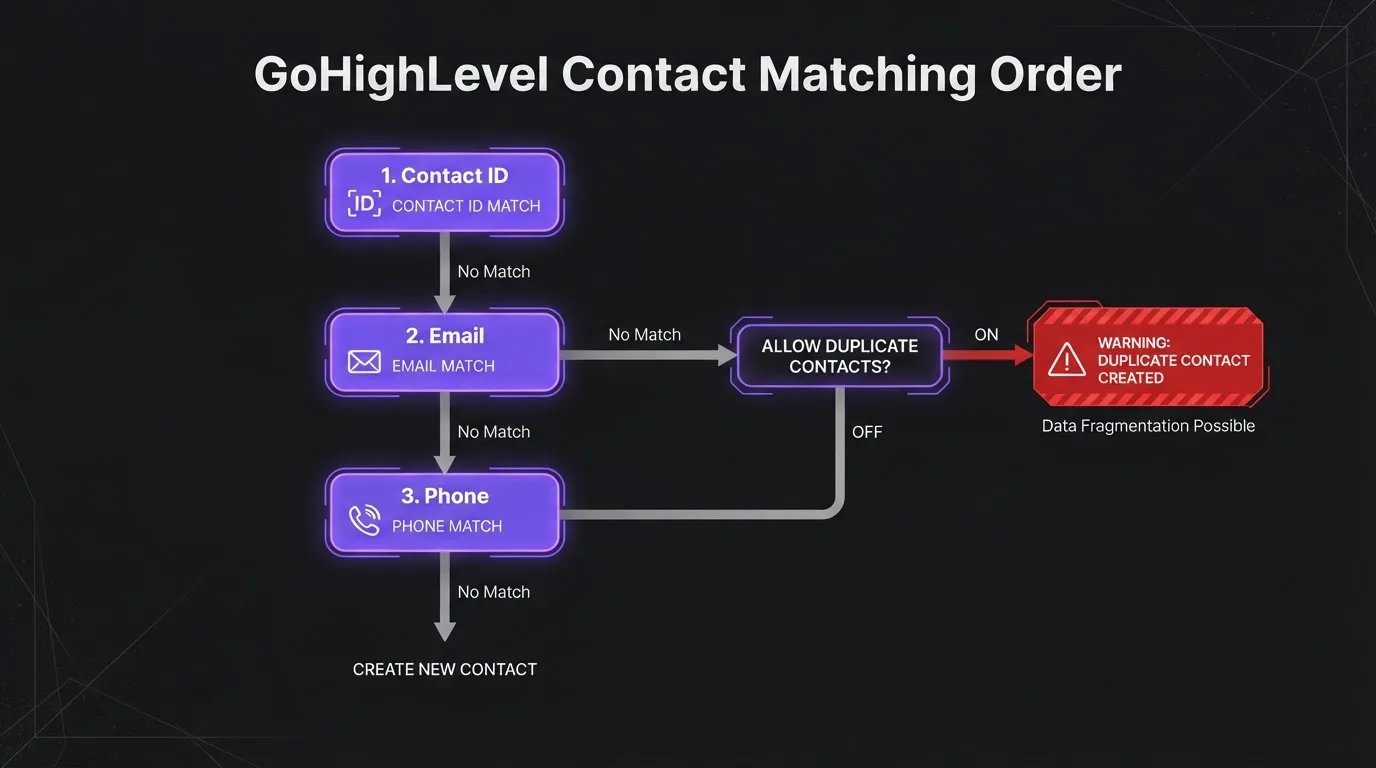
Before you import a single row, pick the field your new CRM will match on to catch duplicates, and pick it on purpose rather than accepting the default. GoHighLevel’s own contact import checks in this order for updates: Contact ID, then email, then phone, and you can also turn on an Allow Duplicate Contacts setting that skips matching entirely, according to HighLevel’s own support documentation. If that setting is on by default in your account and nobody checks it, every re-import creates fresh duplicates instead of updating existing ones. For what happens to duplicates after migration day, the matching order that runs on every later CSV import is worth understanding too.
Email and phone both fail in ordinary, boring ways. The DEV Community writeup traced part of its 40,000 duplicate count to a structural mismatch: the old system stored one Full Name field, the new one split first and last name, and the split logic did not agree with itself across records. A second cause was company name variants, Acme Corp, Acme Corporation, ACME, each treated as a different account. Fuzzy matching helps but is not perfect, so decide your survivorship rule before you need it: when two records match, which one wins on each field, the newer one, the more complete one, or a manual review queue below a confidence threshold.
This is the same identifier problem we walk through in our CRM marketing integration guide, just applied at the moment of migration instead of ongoing sync. Test this against 50 to 100 real records first, not a clean sample you built yourself, since a test contact you typed by hand will pass every check and still miss the pattern that shows up in a real export.
Mapping fields so nothing silently drops
GoHighLevel’s CSV import needs at least one of first name, email, or phone in every row, accepts phone numbers in E.164 format such as +11234567890 as the preferred standard, and reads dates in several common formats. Multi select fields need commas, semicolons, or periods as separators, and slashes are explicitly rejected. Files are capped at 30 MB, one sheet, with a required header row, per the official CSV format documentation.
The part that catches people is custom fields. GoHighLevel will not create a custom field on the fly during import, the field has to exist first with a matching label and data type, or the column maps to nothing. That is the quiet failure mode: a dropdown field on the old system does not error when it lands on a mismatched field type on the new one, it just does not populate, and you find out three weeks later when a workflow that reads that field does not fire for anyone.
The order to rebuild automations in, and why sequence matters
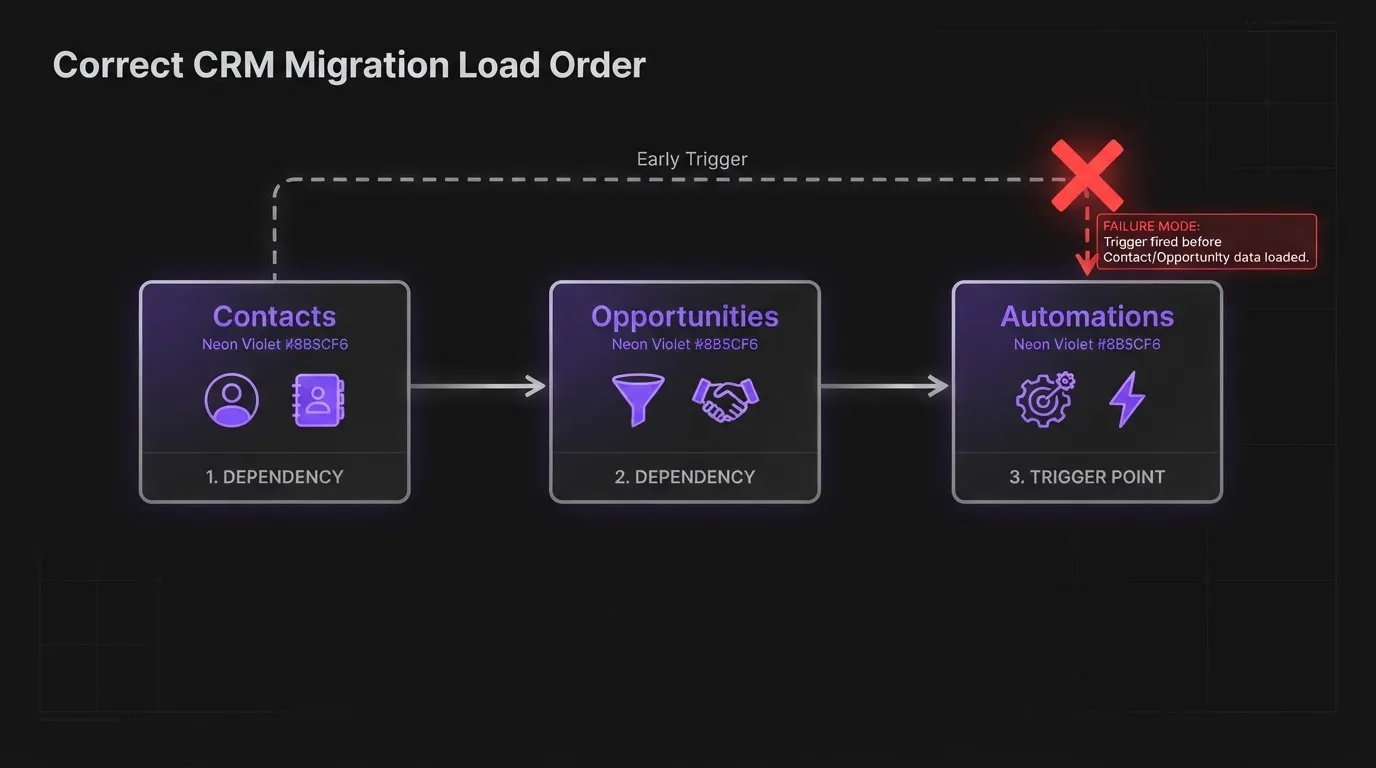
Load order matters for the same reason it matters in any system with dependencies: contacts before opportunities, opportunities before the automations that reference them. Build every automation in the new CRM in draft or inactive mode first, run it against the sample batch from the identifier test, and only flip a trigger live once the data feeding it is fully migrated and deduplicated. This is the exact gap in the PulseOps failure case: automations existed on paper, they had just never been rebuilt with a live trigger, so nothing fired and nobody noticed until deals stalled.
If you are moving into GoHighLevel specifically, this is also where our lead routing workflow post is worth reading before you rebuild anything, since a routing workflow rebuilt in the wrong order will tag and assign leads before the contact record it depends on has actually landed. Automation rebuild is also where a migration should improve on the old setup rather than just recreate it, which is part of what we cover under automation as its own service.
How long should you run both systems in parallel?
Our own client engagements run two to four weeks from audit to go live, stated on our service page, and that covers the full migration, not just the parallel window. A separate PulseOps writeup recommends roughly two weeks of overlap after cutover. One widely shared 2026 migration guide claims phased migrations succeed 98 percent of the time against 87 percent for a straight cutover, sourced only to an industry migration study, practitioner cited with no study named or linked. We could not find it, so we are not repeating that number, and you should be skeptical of any guide that hands you a precision like that with nothing behind it.
The practical rule that has held up for us: run parallel long enough to compare one full sales cycle, not for an arbitrary number of weeks. A business closing leads in 7 to 14 days can often cut over inside two weeks. A business with a 60 to 90 day cycle needs to see at least one full cycle complete in the new system before the old one gets switched off, because that is the only way to know the automations are actually carrying deals to close the way the old ones did.
How to verify it actually worked
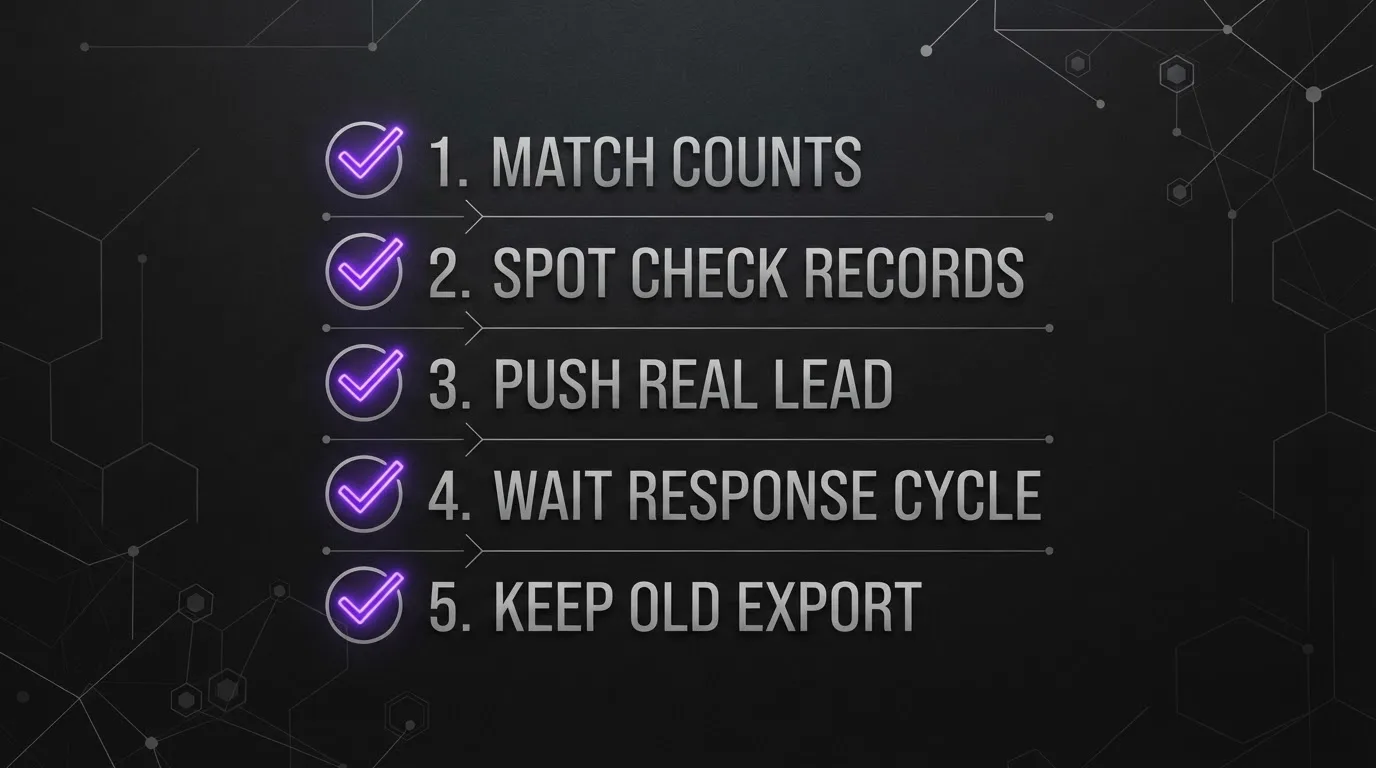
Before you decommission anything, run through this in order:
- Match total contact counts between old and new systems, and account for the gap if the numbers do not match exactly.
- Spot check 20 real records field by field, not the ones you used to build your mapping rules.
- Push one real lead through the full path, form to CRM to workflow to task, and time it.
- Wait one full response cycle, 24 to 48 hours for most small businesses, before turning off notifications on the old system.
- Keep a read only export of the old CRM for at least 90 days. You will need it at least once.
Frequently asked questions
Long enough to see one full sales cycle complete in the new system, not a fixed number of weeks. Short cycle businesses, 7 to 14 days from lead to close, can often cut over within two weeks. Businesses with 60 to 90 day cycles should keep the old system live until at least one full cycle has closed in the new one.
Decide your matching identifier before you import, and check whether the Allow Duplicate Contacts setting is enabled on your account, since GoHighLevel matches on Contact ID, then email, then phone by default for updates. Test the identifier against 50 to 100 real records before running the full import.
GoHighLevel accepts CSV files only, one sheet per file, with a required header row and a 30 MB size cap. Larger exports need to be split into multiple files before import. Custom fields also need to exist in GoHighLevel first, with a matching label and data type, or the column will not map.
Build every automation in draft or inactive mode first, in the same dependency order the data loaded in: contacts, then opportunities, then the workflows that reference them. Test each one against a real sample batch and only activate the trigger once the data behind it is fully migrated.
What we would do differently, and where to start
The mistake we have made more than once is testing a rebuilt automation with a single clean contact we typed ourselves. It passes every time and tells you nothing, since it cannot reproduce the duplicate pattern or malformed phone number that shows up in a real export. We now pull twenty real records, mess included, before calling any workflow ready.
None of this replaces an audit of your specific setup, but if you are staring at an export button, do the identifier decision first. It is nearly impossible to undo once contacts are merged. Want a second pair of eyes on the plan before you cut over? Book a strategy call and we will look at what you have now and where the migration is likely to catch you out. If you have run a migration that broke somewhere we have not covered here, we would like to hear where it went wrong.